
Stage Actions (Automatic/Bulk Actions)
Overview
Stage Actions allow Pinpoint customers to automate integration plugin actions when a candidate is moved into a specific pipeline stage. That is for individual candidates, for bulk actions (bulk move to stage), as well as for scenarios when Pinpoint's Workflow Automations framework will move candidates. For example, automatically sending an assessment or triggering a background check when a candidate reaches the "Screening" stage or sending to HRIS when the candidate reaches the "Hired" stage.
To support Stage Actions, your integration plugin must implement two changes/additions:
- Implement list endpoint handlers that return the available options for each dropdown field.
- Declare list endpoints in your main meta and action meta responses for every dropdown field that has dynamic or static options.
This is necessary because Stage Actions are configured in advance (before any candidate reaches the stage), so the platform needs to fetch dropdown options asynchronously at configuration time rather than at action time.
Stage Actions use the same data mapping system as manual actions. The customer maps Pinpoint candidate fields (e.g. first name, email) to your plugin's fields, and selects specific values for dropdown fields from the options your list endpoints provide.
How It Works
When a customer configures a Stage Action:
-
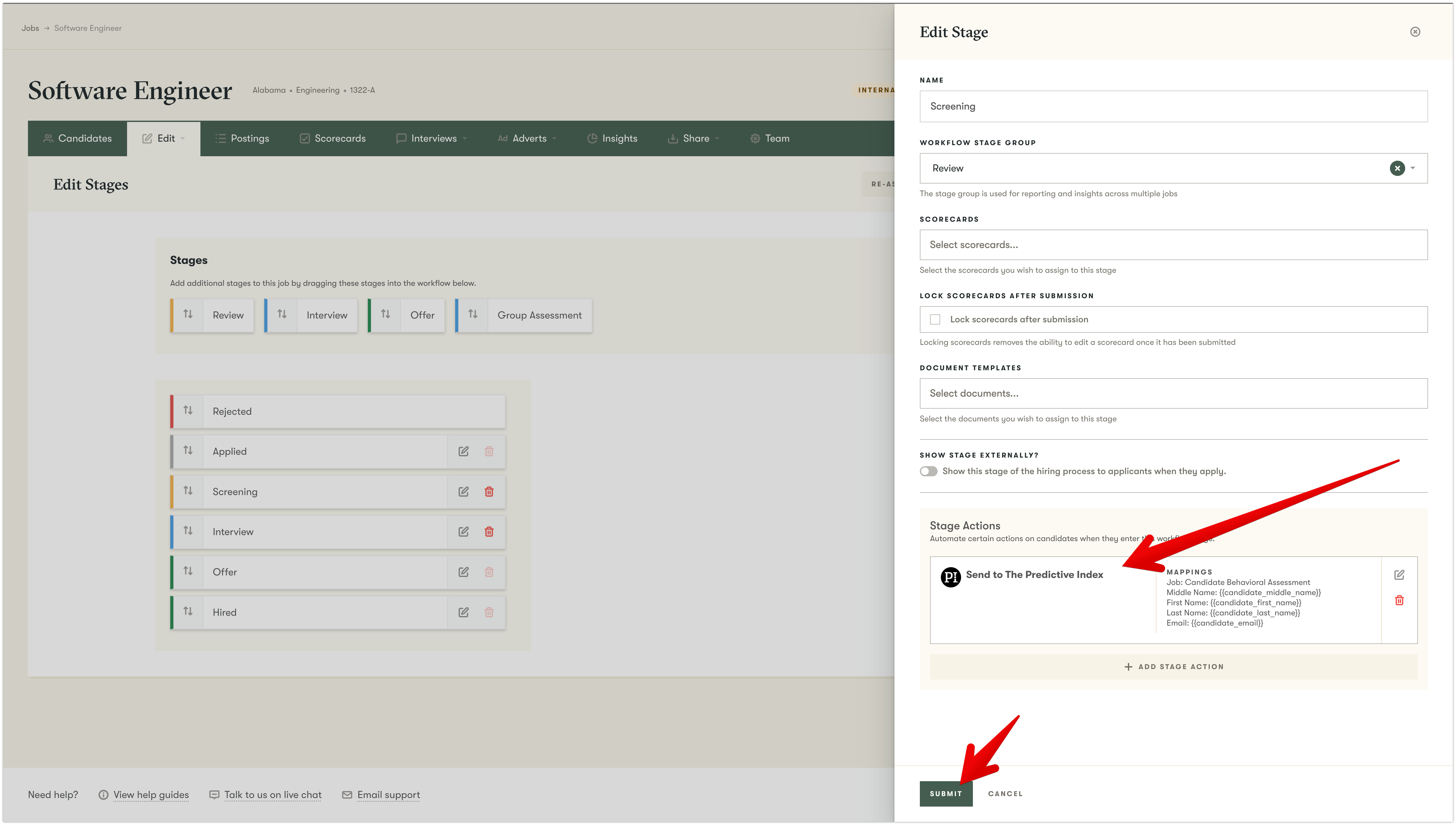
The customer creates or edits a stage in their hiring workflow.
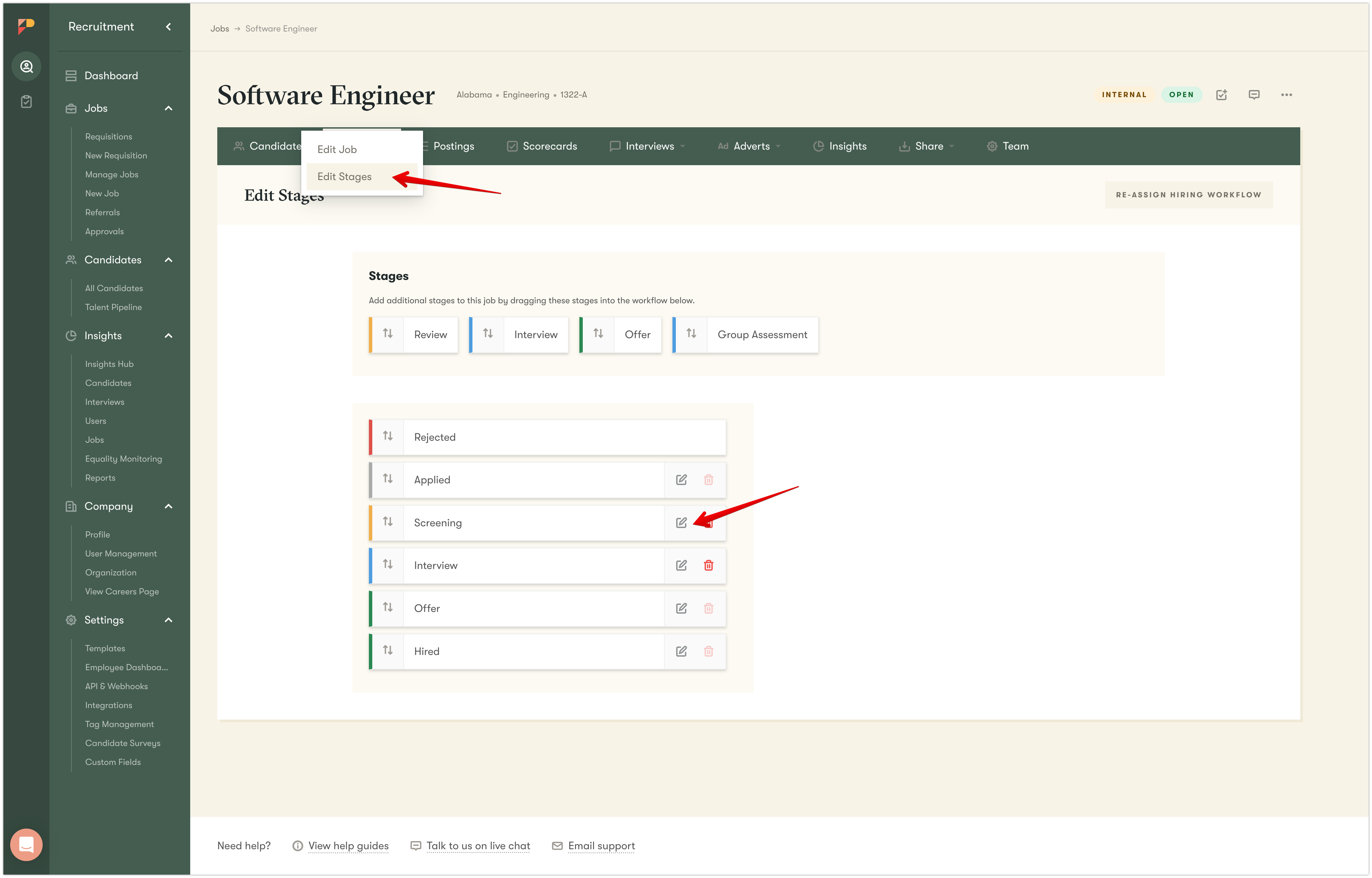
-
At the bottom of the stage form, they click "Add stage action".
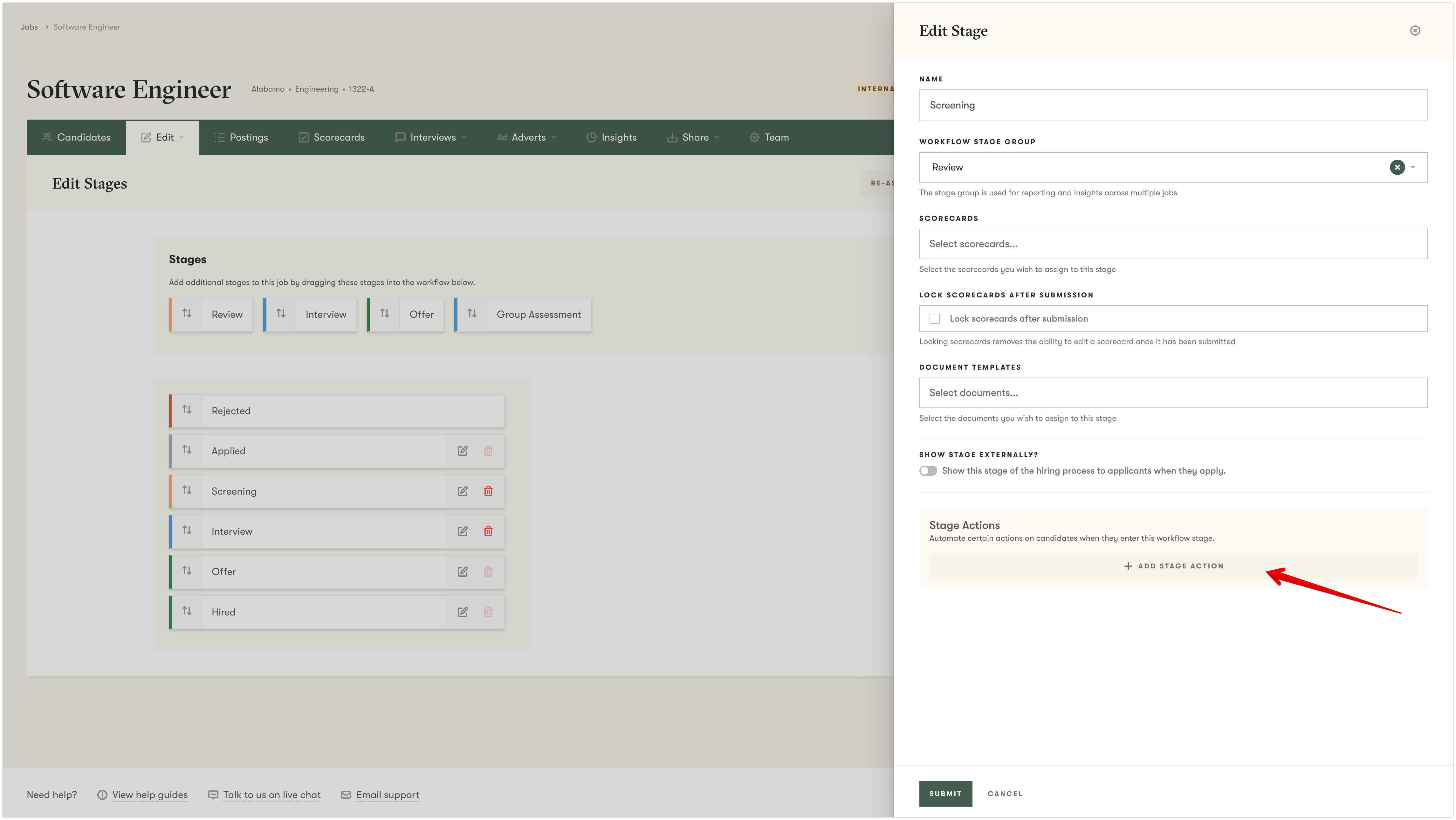
-
They select the action related to your plugin (e.g. "Send to ExampleAssessments").
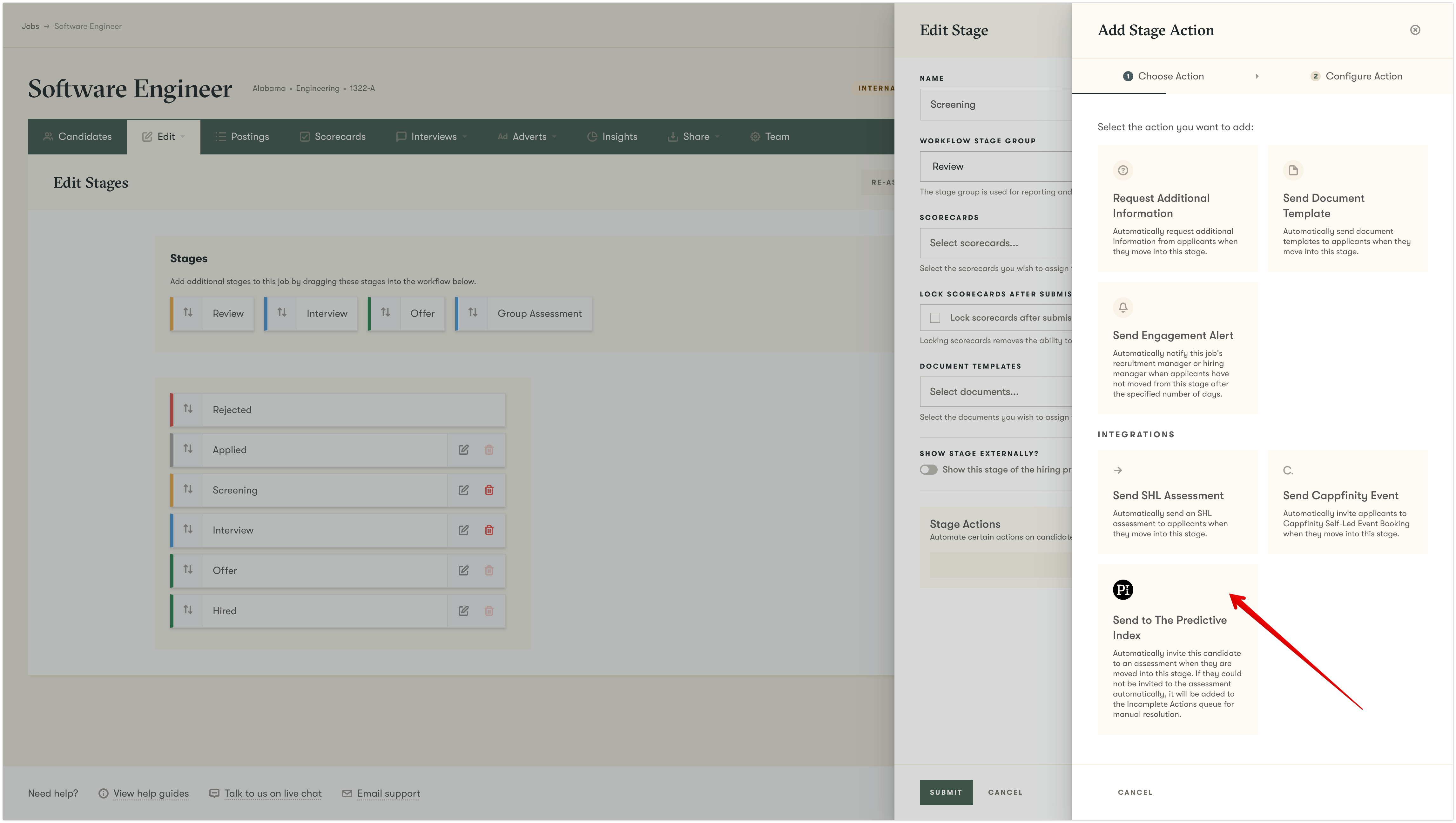
-
A configuration form appears showing field mappings — similar to the form shown during a manual action.
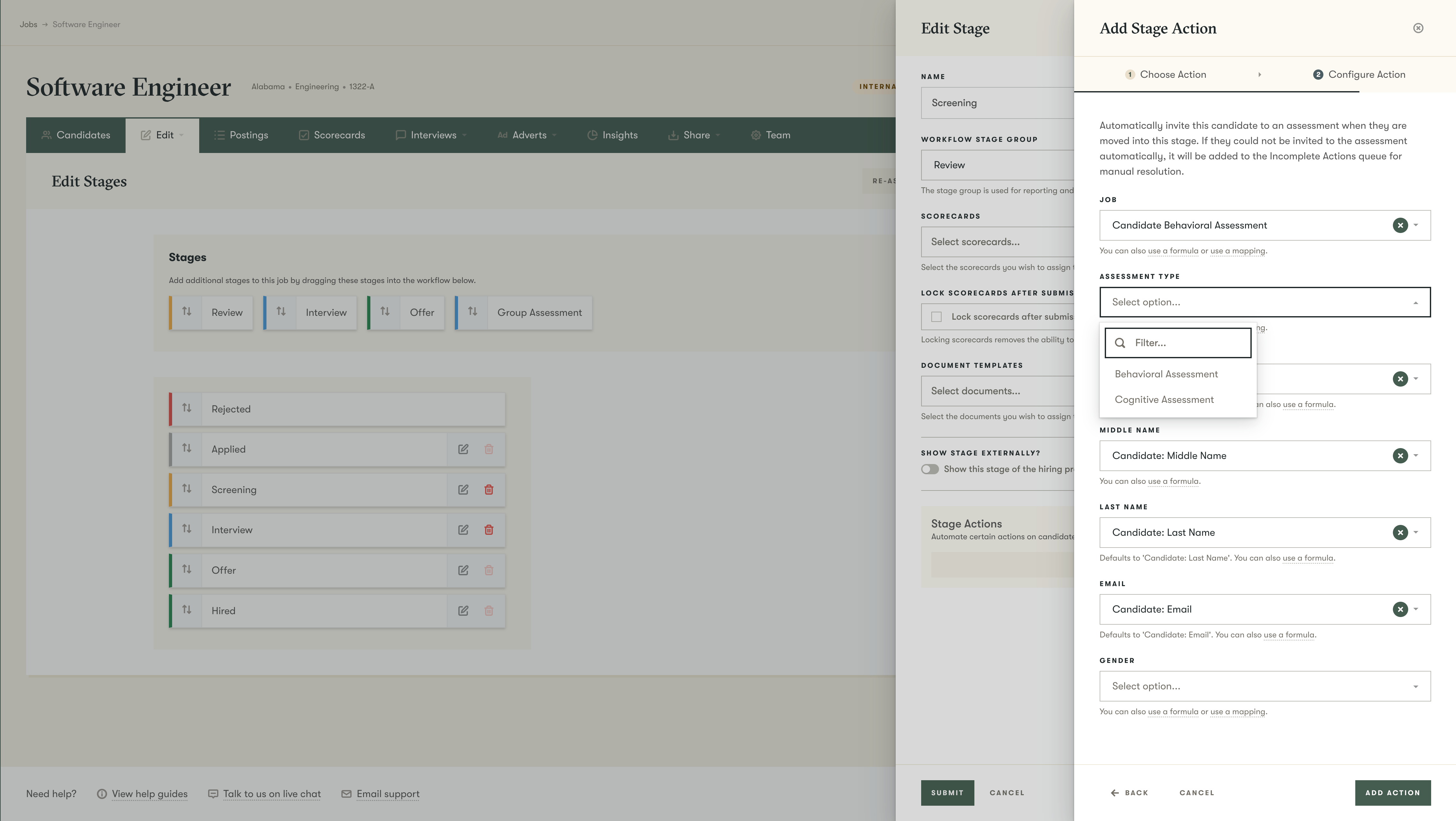
-
For text fields, the customer maps Pinpoint candidate data (e.g.
{{candidate_first_name}}). -
For dropdown fields, the platform calls your list endpoints to fetch the available options.
-
The customer selects a specific value from the dropdown, or maps it from a custom field.
-
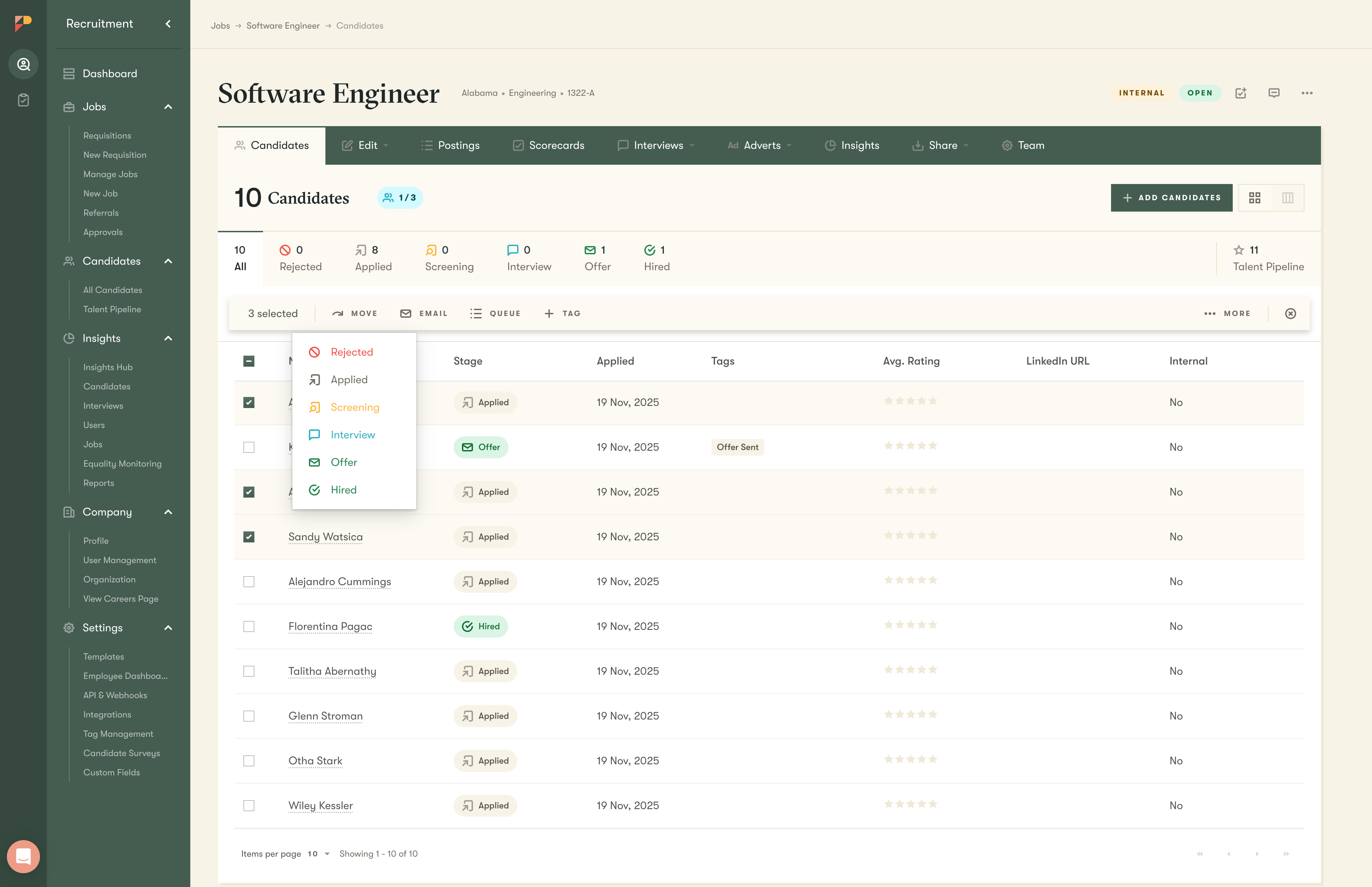
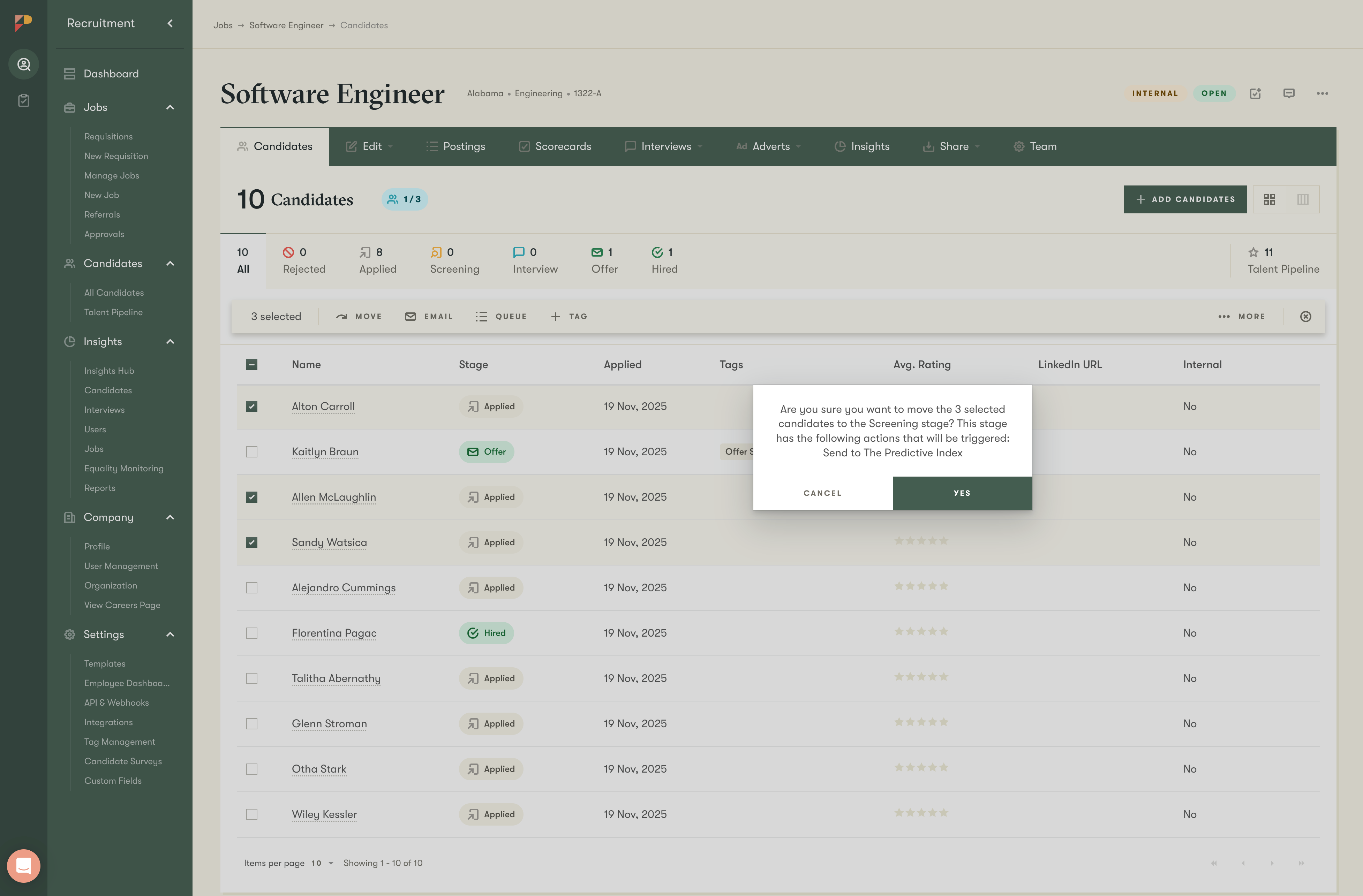
When a candidate is later moved into that stage, the action executes automatically with the configured values.
-
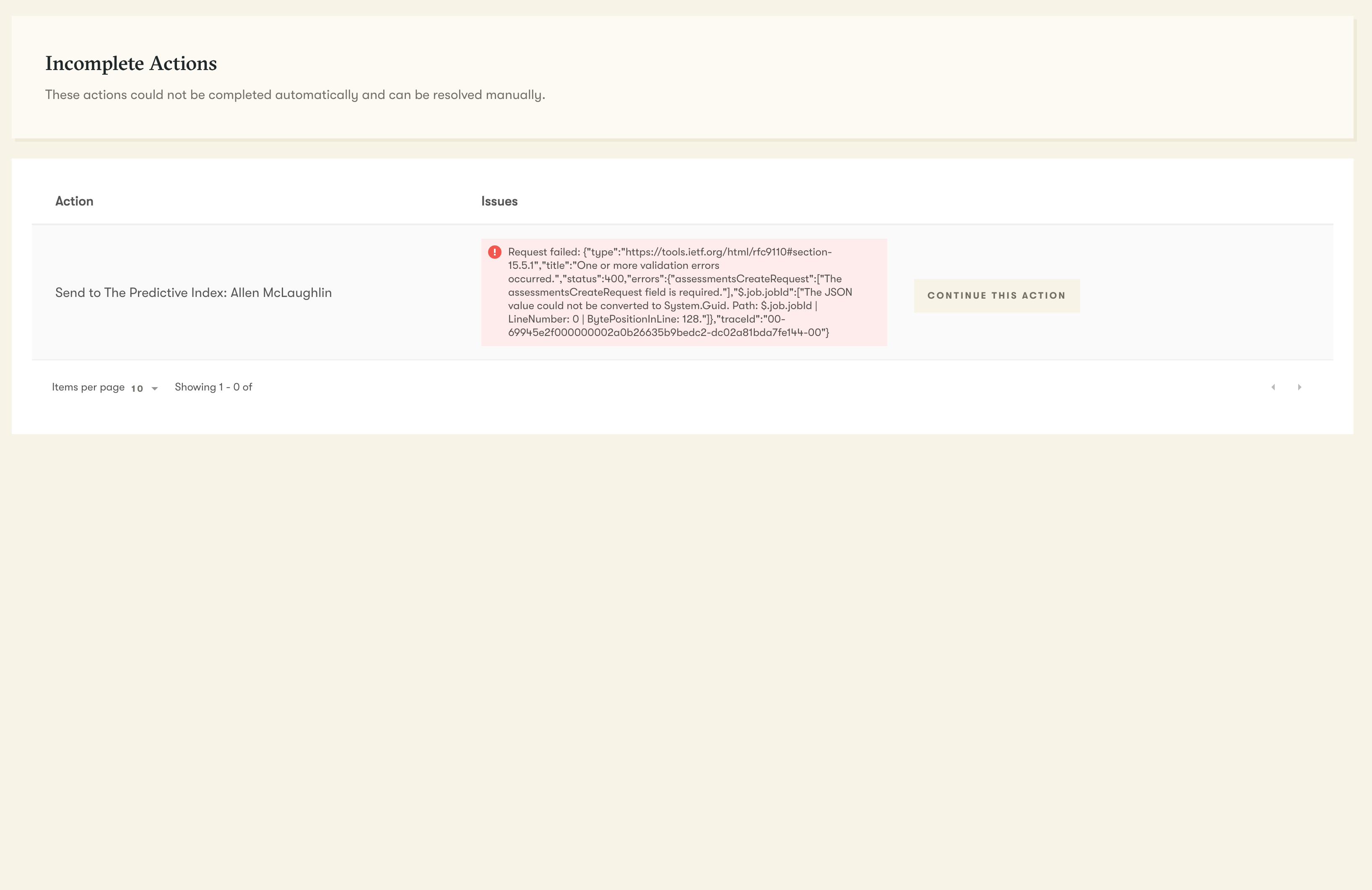
When automation fails, the customer will see the failed action in the "Incomplete Actions" dashboard and will be able to fix the errors and try again (requires manual intervention).
Step 1: Implement List Endpoint Handlers
You should implement a list endpoint for each field with options (
singleSelectOptions,multiSelectOptions,checkboxOptions, orradioOptions).
When the platform calls a list endpoint, it sends a POST request with the plugin's configuration values. Your endpoint must return a list of options.
Request
The platform sends a POST request to your list endpoint with:
{
  "configurationValues": {
    "apiKey": "your-configured-api-key",
    "baseUrl": "https://api.example.com"
  }
}
The configurationValues object contains the values from your plugin's configurationFormFields — typically API keys, base URLs, and other credentials the admin has configured.
At the moment we don't send form fields to the list endpoints.
There is also no way to paginate or filter the options.
Response Schema
| Field | Type | Required | Description |
|---|---|---|---|
resultVersion | string | Yes | Must be "1.0.0". |
success | boolean | Yes | Whether the request succeeded. |
items | array | Yes | Array of option objects. Empty array [] if no options or on failure. |
items[].value | string | Yes | The value that will be submitted when this option is selected. |
items[].label | string | Yes | The display label shown to the user. |
error | string | No | Error message to display if success is false. |
Success Response Example
{
  "resultVersion": "1.0.0",
  "success": true,
  "items": [
    { "value": "test-001", "label": "Cognitive Assessment" },
    { "value": "test-002", "label": "Personality Profile" },
    { "value": "test-003", "label": "Technical Skills Test" }
  ]
}
Error Response Example
{
  "resultVersion": "1.0.0",
  "success": false,
  "items": [],
  "error": "Failed to fetch tests. Please check your API key."
}
You can return items along with an error message to indicate partial success:
{
  "resultVersion": "1.0.0",
  "success": true,
  "items": [
    { "value": "test-001", "label": "Cognitive Assessment" }
  ],
  "error": "Some accounts failed to load: Account B returned an error."
}
Step 2: Declare List Endpoints in Plugin Meta (Main handshake endpoint)
Add a listEndpoints array to your plugin meta response. Each entry declares a named list of options that the platform can fetch.
Schema
| Field | Type | Required | Description |
|---|---|---|---|
key | string | Yes | Unique identifier for this list. Referenced by form fields and mappings. |
label | string | Yes | Human-readable label for the list. |
endpoint | string | Yes | Full endpoint path the platform will call to fetch options. e.g. if your full endpoint URL is https://example.com/pinpoint/plugin/createAssessment/list/tests Then the endpoint path should be pinpoint/plugin/createAssessment/list/tests |
Example
Please note that list endpoints are not action-specific. You define them for all actions.
{
  "version": "1.0.0",
  "name": "ExampleAssessments",
  "logoBase64": "data:image/png;base64,...",
  "actions": [
    {
      "key": "createAssessment",
      "label": "Send to ExampleAssessments",
      "iconSvgBase64": "data:image/svg+xml;base64,...",
      "metaEndpoint": "/createAssessment/meta",
      "mappings": [
        { "key": "testId", "label": "Test", "value": "", "singleListKey": "tests" },
        { "key": "firstName", "label": "First Name", "value": "{{candidate_first_name}}" },
        { "key": "lastName", "label": "Last Name", "value": "{{candidate_last_name}}" },
        { "key": "email", "label": "Email", "value": "{{candidate_email}}" }
      ]
    }
  ],
  // -------------------- LOOK HERE ----------------
  "listEndpoints": [
    { "key": "tests", "label": "Tests", "endpoint": "/createAssessment/list/tests" },
    { "key": "measures", "label": "Measures", "endpoint": "/createAssessment/list/measures" }
  ],
  // -----------------------------------------------
  "webhookProcessEndpoint": "/webhook/process",
  "configurationFormFields": []
}
Step 3: Reference List Endpoints in Mappings
In your action's mappings array (within the plugin meta response), dropdown fields must reference a list endpoint using singleListKey or multipleListKey. This is in your main plugin handshake endpoint.
| Property | Type | Description |
|---|---|---|
singleListKey | string | References a listEndpoints key. The user selects one value from the list. |
multipleListKey | string | References a listEndpoints key. The user selects multiple values from the list. |
Example: Mappings with list references
    {
      "key": "createAssessment",
      "label": "Send to ExampleAssessments",
      "iconSvgBase64": "data:image/svg+xml;base64,...",
      "metaEndpoint": "/createAssessment/meta",
      "mappings": [
				// -------------------- LOOK HERE ----------------
        {
		      "key": "testId",
          "label": "Test",
          "value": "",
          "singleListKey": "tests" // this must match one of the entries in `listEndpoints` by `key`
        },
        {
          "key": "measures",
          "label": "Measures",
          "value": "",
          "multipleListKey": "measures" // this must match one of the entries in `listEndpoints` by `key`
        },
        // -------------------- LOOK HERE ----------------
        { "key": "firstName", "label": "First Name", "value": "{{candidate_first_name}}" },
        { "key": "lastName", "label": "Last Name", "value": "{{candidate_last_name}}" },
        { "key": "email", "label": "Email", "value": "{{candidate_email}}" }
      ]
    }
Step 4: Reference List Endpoints in Form Fields
This is optional, but highly recommended. Benefits
- Keeps your dropdown options logic in one place (otherwise you need to have a logic that provides dropdown options in two places: list endpoint and action meta endpoint).
- Improves performance, becasue with
singleSelectOptionsListKeyormultiSelectOptionsListKeythe dropdown options will be fetched async after the form is loaded, while withsingleSelectOptionsthe options needs to be resolved as part of the action meta request.
In your action meta response, any form field that presents a dropdown can reference a list endpoint using singleSelectOptionsListKey or multiSelectOptionsListKey instead of providing static options via singleSelectOptions.
| Property | Type | Description |
|---|---|---|
singleSelectOptionsListKey | string | References a listEndpoints key. Renders a single-select dropdown with options fetched from the list endpoint. |
multiSelectOptionsListKey | string | References a listEndpoints key. Renders a multi-select field with options fetched from the list endpoint. |
Example: Form field with list endpoint reference
{
  "formFields": [
    {
      "key": "testId",
      "label": "Test",
      "type": "string",
      "required": true,
      "placeholder": "Select test...",
			// -------------------- LOOK HERE ----------------
      "singleSelectOptionsListKey": "tests"
      //singleSelectOptions: [...] // remove this
    },
    {
      "key": "measures",
      "label": "Measures",
      "type": "string",
      "required": false,
      "placeholder": "Select measures...",
			// -------------------- LOOK HERE ----------------
      "multiSelectOptionsListKey": "measures"
			//multiSelectOptions: [...] // remove this
    }
  ]
}
Static vs. Dynamic List Endpoints
List endpoints can return either dynamic options (fetched from your API/DB/config at request time) or static options (hardcoded values that don't change).
Dynamic Options
Use when the available options come from your external API and may change over time (e.g. available tests, job positions, projects).
POST /createAssessment/list/tests
→ Call your external API/DB/config to fetch current tests
→ Return transformed results as items
Static Options
Use when the options are fixed and don't require an API call (e.g. gender options, assessment types, priority levels).
POST /createAssessment/list/genders
→ Return hardcoded list of options
Even for static options, you must implement a list endpoint handler so the platform can fetch them asynchronously during Stage Action configuration.
Complete Example
Below is a complete example showing a plugin that supports Stage Actions with two list endpoints — one dynamic (tests) and one static (measures).
Plugin Meta Response
{
  "version": "1.0.0",
  "name": "ExampleAssessments",
  "logoBase64": "data:image/png;base64,...",
  "actions": [
    {
      "key": "createAssessment",
      "label": "Send Assessment",
      "iconSvgBase64": "data:image/svg+xml;base64,...",
      "metaEndpoint": "/createAssessment/meta",
      "mappings": [
        { "key": "testId", "label": "Test", "value": "", "singleListKey": "tests" },
        { "key": "measure", "label": "Measure", "value": "", "singleListKey": "measures" },
        { "key": "firstName", "label": "First Name", "value": "{{candidate_first_name}}" },
        { "key": "lastName", "label": "Last Name", "value": "{{candidate_last_name}}" },
        { "key": "email", "label": "Email", "value": "{{candidate_email}}" }
      ]
    }
  ],
  "listEndpoints": [
    { "key": "tests", "label": "Tests", "endpoint": "/createAssessment/list/tests" },
    { "key": "measures", "label": "Measures", "endpoint": "/createAssessment/list/measures" }
  ],
  "webhookProcessEndpoint": "/webhook/process",
  "configurationFormFields": [
    {
      "key": "apiKey",
      "label": "API Key",
      "type": "string",
      "required": true,
      "sensitive": true
    }
  ]
}
Action Meta Response
{
  "resultVersion": "1.0.0",
  "success": true,
  "formFields": [
    {
      "key": "testId",
      "label": "Test",
      "type": "string",
      "required": true,
      "placeholder": "Select a test...",
      "singleSelectOptionsListKey": "tests"
    },
    {
      "key": "measure",
      "label": "Measure",
      "type": "string",
      "required": false,
      "placeholder": "Select a measure...",
      "singleSelectOptionsListKey": "measures"
    },
    {
      "key": "firstName",
      "label": "First Name",
      "type": "string",
      "required": true,
      "value": "{{candidate_first_name}}"
    },
    {
      "key": "lastName",
      "label": "Last Name",
      "type": "string",
      "required": true,
      "value": "{{candidate_last_name}}"
    },
    {
      "key": "email",
      "label": "Email",
      "type": "string",
      "required": true,
      "value": "{{candidate_email}}"
    }
  ]
}
List Endpoint: Dynamic (Tests)
Request: POST /createAssessment/list/tests
{
  "configurationValues": {
    "apiKey": "sk-abc123"
  }
}
Response:
{
  "resultVersion": "1.0.0",
  "success": true,
  "items": [
    { "value": "test-001", "label": "Cognitive Assessment" },
    { "value": "test-002", "label": "Personality Profile" },
    { "value": "test-003", "label": "Technical Skills Test" }
  ]
}
List Endpoint: Static (Measures)
Request: POST /createAssessment/list/measures
{
  "configurationValues": {
    "apiKey": "sk-abc123"
  }
}
Response:
{
  "resultVersion": "1.0.0",
  "success": true,
  "items": [
    { "value": "percentile", "label": "Percentile" },
    { "value": "raw_score", "label": "Raw Score" },
    { "value": "stanine", "label": "Stanine" }
  ]
}
Migration Checklist
If your plugin already works for manual actions but doesn't yet support Stage Actions, follow these steps:
1. Identify all dropdown fields
Review your action meta response and find every form field that uses singleSelectOptions, multiSelectOptions, checkboxOptions, or radioOptions.
2. Create a list endpoint for each dropdown
For each dropdown field, define a list endpoint that returns the same options. The endpoint path should follow the convention:
/<actionKey>/list/<listKey>For example:
/createAssessment/list/tests/createAssessment/list/packages/exportCandidate/list/locations
3. Add listEndpoints to your plugin meta
listEndpoints to your plugin metaDeclare each list endpoint in the top-level listEndpoints array of your plugin meta response.
4. Add singleListKey / multipleListKey to your mappings
singleListKey / multipleListKey to your mappingsIn the mappings array of your action (within the plugin meta), add the appropriate list key reference to each dropdown mapping field.
5. Add singleSelectOptionsListKey / multiSelectOptionsListKey to your form fields
singleSelectOptionsListKey / multiSelectOptionsListKey to your form fieldsIn your action meta response, update each dropdown form field to include the list key reference.
6. Implement the list endpoint handlers
Handle the incoming POST requests at each list endpoint path and return the options in the required response format.
7. Test your integration
- Please reach out to [email protected] to refresh your integration.
- Verify each list endpoint returns valid responses.
- Verify that the platform can fetch and display options in the Stage Action configuration form.
- Verify that a Stage Action can be saved and executed successfully when a candidate moves into the configured stage.
FAQ
Do I need to change my submit endpoint?
No. The submit endpoint works the same way for both manual actions and Stage Actions. The platform sends the same payload format regardless of how the action was triggered.
Do I need to change my webhook endpoint?
No. Webhooks work identically for manual and automated actions.
What if my list endpoint depends on another field's value?
We currently don't support this. Please let us know about your use case.
What is the endpoint naming convention?
Internally, we follow this pattern for list endpoint paths:
/<actionKey>/list/<listKey>Where <actionKey> matches your action's key field (e.g. createAssessment, exportCandidate) and <listKey> is a camelCase identifier for the option set (e.g. tests, jobPositions, assessmentTypes).
Updated 7 months ago