
Plugin Configuration Fields
Overview
Configuration fields allow Pinpoint users with admin permissions to configure your plugin integration from the Pinpoint UI — things like API keys, base URLs, webhook secrets, and other settings your plugin needs to operate.
Once saved by the admin, these values are automatically included in every request Pinpoint makes to your plugin, so you don't need to manage credentials yourself.
How Configuration Fields Work
Currently all changes done to the Meta Endpoint (including configuration fields changes) require refresh on the already registered plugin. This needs to be done by the Pinpoint team, please reach out to
[email protected].
Setup Flow
- You define
configurationFormFieldsin your plugin's Meta Endpoint response. - Pinpoint renders these as a form in the Integrations → My Plugins → Configure panel.
- The admin fills in the values (e.g. their API key) and saves.
- Pinpoint stores the values securely (sensitive fields are encrypted).
- On every subsequent request to your plugin — meta, submit, webhook process — Pinpoint automatically includes the saved values as
configurationValuesin the request payload (or as HTTP headers ifuseAsHttpHeaderis set).
What It Looks Like in the UI
When an admin opens the Configure panel for their plugin, they see a form rendered from your configurationFormFields definition:

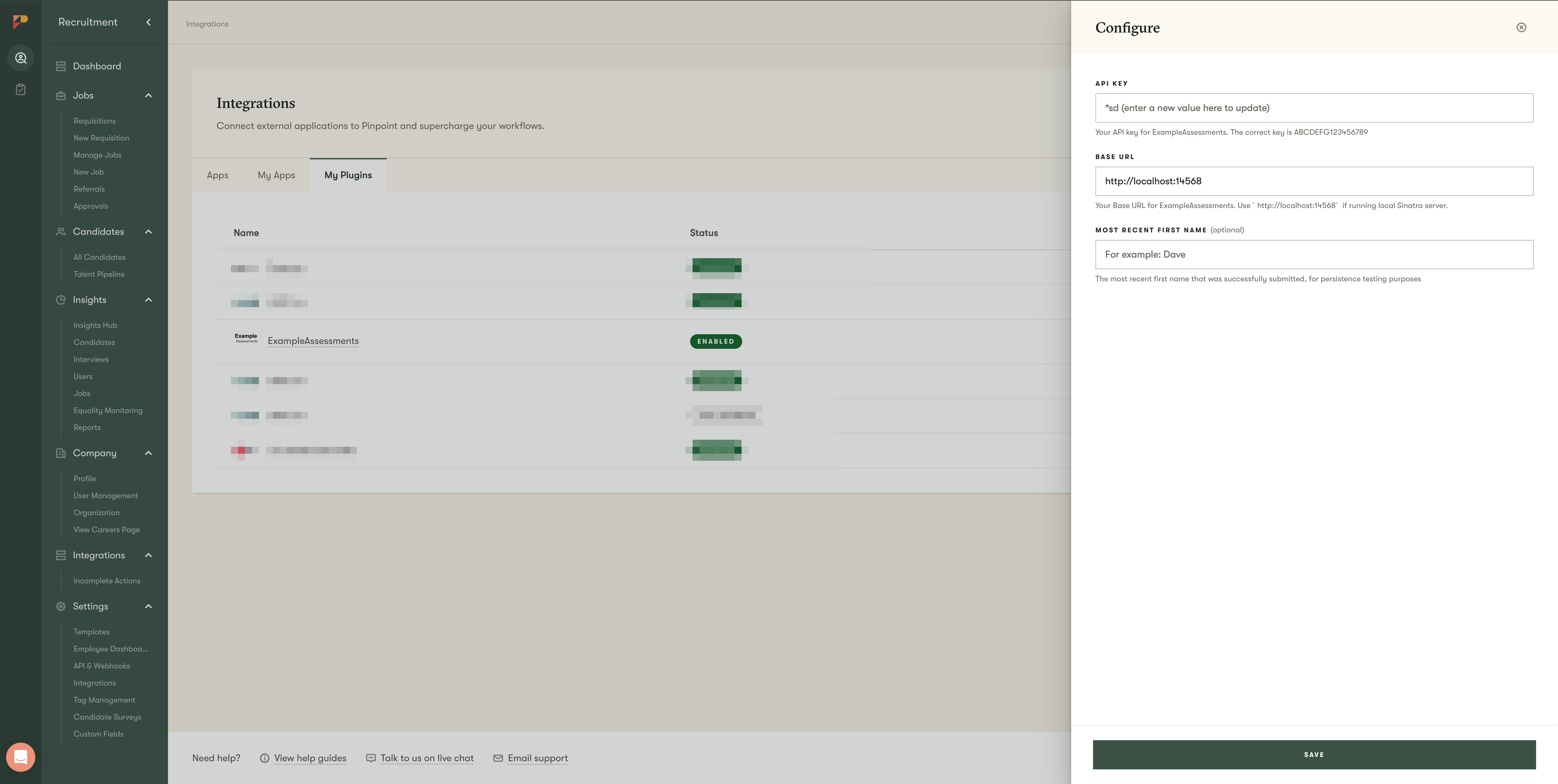
Above: The Configure panel showing API Key (sensitive/masked), Base URL, and an optional persisted field.
Defining Configuration Fields
Configuration fields are defined in the response from your Meta Endpoint (the root endpoint Pinpoint calls to register your plugin).
{
  version: '2.0.0',
  name: 'ExampleAssessments',
  logoBase64: 'data:image/png;base64,...',
  actions: [...],
  configurationFormFields: [
    {
      key: 'apiKey',
      label: 'API Key',
      description: 'Your ExampleAssessments API key',
      type: 'string',
      required: true,
      sensitive: true,
      placeholder: 'e.g. sk_live_abc123',
    },
    {
      key: 'baseUrl',
      label: 'Base URL',
      description: 'Your ExampleAssessments API base URL',
      type: 'string',
      required: true,
      defaultValue: 'https://api.example-assessments.com',
      placeholder: 'e.g. https://api.example-assessments.com',
    },
  ]
}
Field Properties
Schema
| Field | Type | Required | Validation | Description |
|---|---|---|---|---|
key | string | Yes | Non-empty, unique | Identifier used to reference this field in configurationValues |
label | string | Yes | Non-empty | Display label shown to the admin in the Configure form |
type | string | Yes | string or persisted_string | Field type — see Field Types below |
description | string | Optional | Help text shown below the field | |
placeholder | string | Optional | Placeholder text for the input | |
defaultValue | string | Optional | Pre-populated default value | |
required | boolean | Optional | Whether this field must be filled before the integration can be saved | |
readonly | boolean | Optional | Whether the field is read-only (useful for displaying system-generated values like webhook URLs) | |
multiline | boolean | Optional | Render as a textarea instead of a single-line input | |
sensitive | boolean | Optional | Whether the value contains credentials — see Sensitive Fields | |
useAsHttpHeader | string | Optional | Non-empty header name | Send this value as an HTTP header instead of in configurationValues — see HTTP Headers |
actionType | string | Optional | createAssessment, createBackgroundCheck, exportCandidate | Scopes this field to a specific action type — see Action-Scoped Fields |
singleSelectOptions | array | Optional | See Select Option Object | Renders as a dropdown (single selection) |
multiSelectOptions | array | Optional | See Select Option Object | Renders as a multi-select dropdown |
checkboxOptions | array | Optional | See Select Option Object | Renders as a checkbox group |
radioOptions | array | Optional | Max 3 options, See Select Option Object | Renders as a radio button group |
Select Option Object
| Field | Type | Required | Description |
|---|---|---|---|
label | string | Yes | Display text for the option |
value | string | Yes | Value stored when this option is selected |
Field Types
string
stringThe standard type for all configuration fields. Renders as a text input (or multiline textarea if multiline: true). Values are stored but not automatically persisted between actions.
{
  key: 'apiKey',
  label: 'API Key',
  type: 'string',
  required: true,
  sensitive: true,
}
When you provide one of singleSelectOptions, multiSelectOptions, checkboxOptions, radioOptions, then the field will be displayed as a respective field type with provided options. Please see the section below.
persisted_string
persisted_stringSame as string but the value is persisted back to the configuration after each successful action. This is useful for round-trip values — when your plugin writes a value back via the persist response field and you want it to survive across multiple action submissions.
A common use case is storing a value that your external system returns (e.g. last employee ID - for incremental IDs, a "most recently submitted" tracker for debugging).
{
  key: 'mostRecentFirstName',
  label: 'Most Recent First Name',
  description: 'The most recent first name submitted (for debugging)',
  type: 'persisted_string',
  sensitive: false,
}
persisted_stringfields can be updated programmatically using thepersistfield in your action submit result response.
Special Behaviors
Sensitive Fields
Fields marked sensitive: true are treated as credentials:
- Values are encrypted at rest in Pinpoint's database.
- In the Configure UI, the existing value is masked (shown as
****). The admin must type a new value to update it. - Sensitive values are never sent to the frontend — only transmitted server-to-server to your plugin endpoints.
{
  key: 'apiKey',
  label: 'API Key',
  type: 'string',
  sensitive: true,
  required: true,
  placeholder: 'e.g. sk_live_abc123',
}
Always set sensitive: true for API keys, passwords, webhook secrets, and any other credential.
Sending Values as HTTP Headers
If your plugin authenticates via HTTP headers (rather than reading credentials from the request body), set useAsHttpHeader to the header name you want the value sent under.
When useAsHttpHeader is set:
- The value is NOT included in
configurationValuesin the request payload. - Instead, it is added as an HTTP request header on every request Pinpoint makes to your plugin.
{
  key: 'apiKey',
  label: 'API Key',
  type: 'string',
  sensitive: true,
  required: true,
  useAsHttpHeader: 'X-API-Key',
}
With this configuration, Pinpoint will send:
POST /your-plugin/meta
X-API-Key: sk_live_abc123
And configurationValues in the payload will not contain apiKey.
useAsHttpHeaderandconfigurationValuesare mutually exclusive for a given field. A field withuseAsHttpHeaderset will only appear in the request headers, not in the payload.
Action-Scoped Fields
By default, all configuration fields are sent on every request to your plugin. If you need certain fields to only be sent for a specific action type, set actionType:
{
  key: 'backgroundCheckPackageId',
  label: 'Default Package ID',
  type: 'string',
  actionType: 'createBackgroundCheck',
  description: 'Default background check package to use if not overridden in the form',
}
Valid values:
createAssessmentcreateBackgroundCheckexportCandidate
When actionType is omitted, the field is sent to all action endpoints.
Read-Only Fields
Fields marked readonly: true are displayed to the admin but cannot be edited. This is useful for showing system-generated values your plugin provides — such as a webhook URL that the admin needs to copy into a third-party system.
{
  key: 'webhookUrl',
  label: 'Webhook URL',
  description: 'Copy this URL into your provider dashboard to enable webhooks',
  type: 'string',
  readonly: true,
  defaultValue: 'https://app.pinpointhq.com/your-webhook-url',
}
Select / Radio / Checkbox Fields
Configuration fields support the same selection UI components as action form fields. These let admins choose from a fixed set of options rather than typing freeform text.
Radio buttons (max 3 options) — good for binary toggles:
{
  key: 'environment',
  label: 'Environment',
  description: 'Which environment to use',
  type: 'string',
  defaultValue: 'production',
  radioOptions: [
    { label: 'Production', value: 'production' },
    { label: 'Sandbox', value: 'sandbox' },
  ],
}
Single-select dropdown — for longer option lists:
{
  key: 'region',
  label: 'Region',
  type: 'string',
  singleSelectOptions: [
    { label: 'US', value: 'us' },
    { label: 'EU', value: 'eu' },
    { label: 'APAC', value: 'apac' },
  ],
}
Multi-select dropdown — for longer option lists with an option to multiple options:
{
  key: 'region',
  label: 'Region',
  type: 'string',
  multiSelectOptions: [
    { label: 'US', value: 'us' },
    { label: 'EU', value: 'eu' },
    { label: 'APAC', value: 'apac' },
  ],
}
How Configuration Values Are Sent to Your Plugin
Once an admin saves their configuration, Pinpoint automatically includes the values in every request to your plugin.
In the Payload (configurationValues)
For fields without useAsHttpHeader, values are sent as a configurationValues array:
{
  "payloadVersion": "1.0.0",
  "key": "createBackgroundCheck",
  "formFields": [],
  "configurationValues": [
    { "key": "apiKey", "value": "sk_live_abc123" },
    { "key": "baseUrl", "value": "https://api.example.com" }
  ],
  "webhookUrl": "https://app.pinpointhq.com/..."
}
This applies to:
- Action Meta Endpoint requests (when building the form)
- Action Submit Endpoint requests (when the user submits the form)
- Webhook Process Endpoint requests (when forwarding a webhook payload)
- Base Meta Endpoint requests (during plugin registration/handshake)
As HTTP Headers
For fields with useAsHttpHeader set, the value is sent as a header on every request:
POST /your-plugin/createBackgroundCheck/meta
X-Example-Checks-Key: sk_live_abc123
X-Example-Base-URL: https://api.example.com
Content-Type: application/json

{ "payloadVersion": "1.0.0", ... }
Reading Configuration Values in Your Plugin
Configuration values arrive as an array of { key, value } objects. Use a helper to convert them to a hash for easy access:
Node.js:
function getConfigValues(payload) {
  return (payload.configurationValues || []).reduce((acc, { key, value }) => {
    acc[key] = value;
    return acc;
  }, {});
}

// Usage
const config = getConfigValues(payload);
const apiKey = config.apiKey;
const baseUrl = config.baseUrl;
def configuration_values_from_payload(payload)
payload&.fetch('configurationValues', nil)
&.map { [_1['key'], _1['value']] }
&.to_h || {}
end
# Usage
config = configuration_values_from_payload(payload)
api_key = config['apiKey']
base_url = config['baseUrl']Real-World Examples
API Key + Base URL (most common)
The most common pattern: a sensitive API key and a configurable base URL. The API key is sent as an HTTP header so your plugin can authenticate without parsing the payload body.
configurationFormFields: [
  {
    key: 'apiKey',
    label: 'API Key',
    description: 'Your ExampleAssessments API key',
    type: 'string',
    required: true,
    sensitive: true,
    useAsHttpHeader: 'X-Example-Key',
    placeholder: 'e.g. sk_live_abc123',
  },
  {
    key: 'baseUrl',
    label: 'Base URL',
    description: 'Your ExampleAssessments API base URL',
    type: 'string',
    required: true,
    sensitive: false,
    useAsHttpHeader: 'X-Example-Base-URL',
    placeholder: 'e.g. https://api.example.com',
  },
]
Username + Password Authentication
For providers using basic auth or credential-based authentication:
configurationFormFields: [
  {
    key: 'username',
    label: 'Username',
    description: 'Your ExampleAssessments API username',
    type: 'string',
    required: true,
    sensitive: false,
    placeholder: 'e.g. hr-user',
  },
  {
    key: 'password',
    label: 'Password',
    description: 'Your ExampleAssessments API password',
    type: 'string',
    required: true,
    sensitive: true,
    placeholder: 'e.g. ••••••••••••',
  },
  {
    key: 'baseUrl',
    label: 'Base URL',
    description: 'The ExampleAssessments API base URL',
    type: 'string',
    required: true,
    sensitive: false,
    placeholder: 'e.g. https://api.sovaonline.com/integrations/hr-user/v4',
  },
]
Multiple Secrets (API Key + Webhook Secret)
When your provider requires a separate secret for webhook signature verification:
configurationFormFields: [
  {
    key: 'apiKey',
    label: 'API Key',
    description: 'Your ExampleAssessments API key',
    type: 'string',
    required: true,
    sensitive: true,
    placeholder: 'e.g. 12345678-abcd-1234-abcd-1234567890ab',
  },
  {
    key: 'secretKey',
    label: 'Secret Key',
    description: 'Your ExampleAssessments secret key',
    type: 'string',
    required: true,
    sensitive: true,
    placeholder: 'e.g. 12345678-abcd-1234-abcd-1234567890ab',
  },
  {
    key: 'webhookSecret',
    label: 'Webhook Secret',
    description: 'Your ExampleAssessments webhook secret for signature verification',
    type: 'string',
    required: true,
    sensitive: true,
    placeholder: 'e.g. 12345678-abcd-1234-abcd-1234567890ab',
  },
]
Default Value + Radio Toggle
For a boolean setting with a default:
configurationFormFields: [
  {
    key: 'apiKey',
    label: 'API Key',
    type: 'string',
    required: true,
    sensitive: true,
  },
  {
    key: 'showResultsToCandidate',
    label: 'Show Results to Candidate',
    description: 'Allow candidates to view their results when completed',
    type: 'string',
    required: false,
    sensitive: false,
    defaultValue: 'false',
    radioOptions: [
      { label: 'Enabled', value: 'true' },
      { label: 'Disabled', value: 'false' },
    ],
  },
]
Displaying a System-Generated Webhook URL
When your provider requires you to register a webhook URL in their dashboard, you can display the platform's webhook URL as a read-only field so admins can easily copy it:
configurationFormFields: [
  {
    key: 'apiKey',
    label: 'API Key',
    type: 'string',
    required: true,
    sensitive: true,
  },
  {
    key: 'webhookUrl',
    label: 'Webhook URL',
    description: 'Copy this URL into your Shortlister dashboard under Webhooks',
    type: 'string',
    readonly: true,
    defaultValue: webhook_url,   # provided by the framework at registration time
  },
]
Default Base URL with Override
When your plugin has a standard production URL but some clients may need to point to a different environment:
configurationFormFields: [
  {
    key: 'apiKey',
    label: 'API Key',
    type: 'string',
    required: true,
    sensitive: true,
    placeholder: 'e.g. 12345678-abcd-1234-abcd-123456789abc',
  },
  {
    key: 'baseUrl',
    label: 'Base URL',
    description: "The Predictive Index API base URL (default: #{DEFAULT_BASE_URL})",
    type: 'string',
    required: true,
    sensitive: false,
    defaultValue: DEFAULT_BASE_URL,
    placeholder: "e.g. #{DEFAULT_BASE_URL}",
  },
]
Updated 7 months ago