
Requesting from Onboarding
Background Checks can also be requested automatically as an Onboarding Step (the customer must use Pinpoint Onboarding).
Prerequisites
- The plugin must implement
createBackgroundCheckaction - The plugin must implement List Endpoints for all select fields
- Pinpoint team needs to enable Onboarding Support for a plugin for the customer (this is not controlled by the plugin)
1. Adding a background check step to an onboarding process
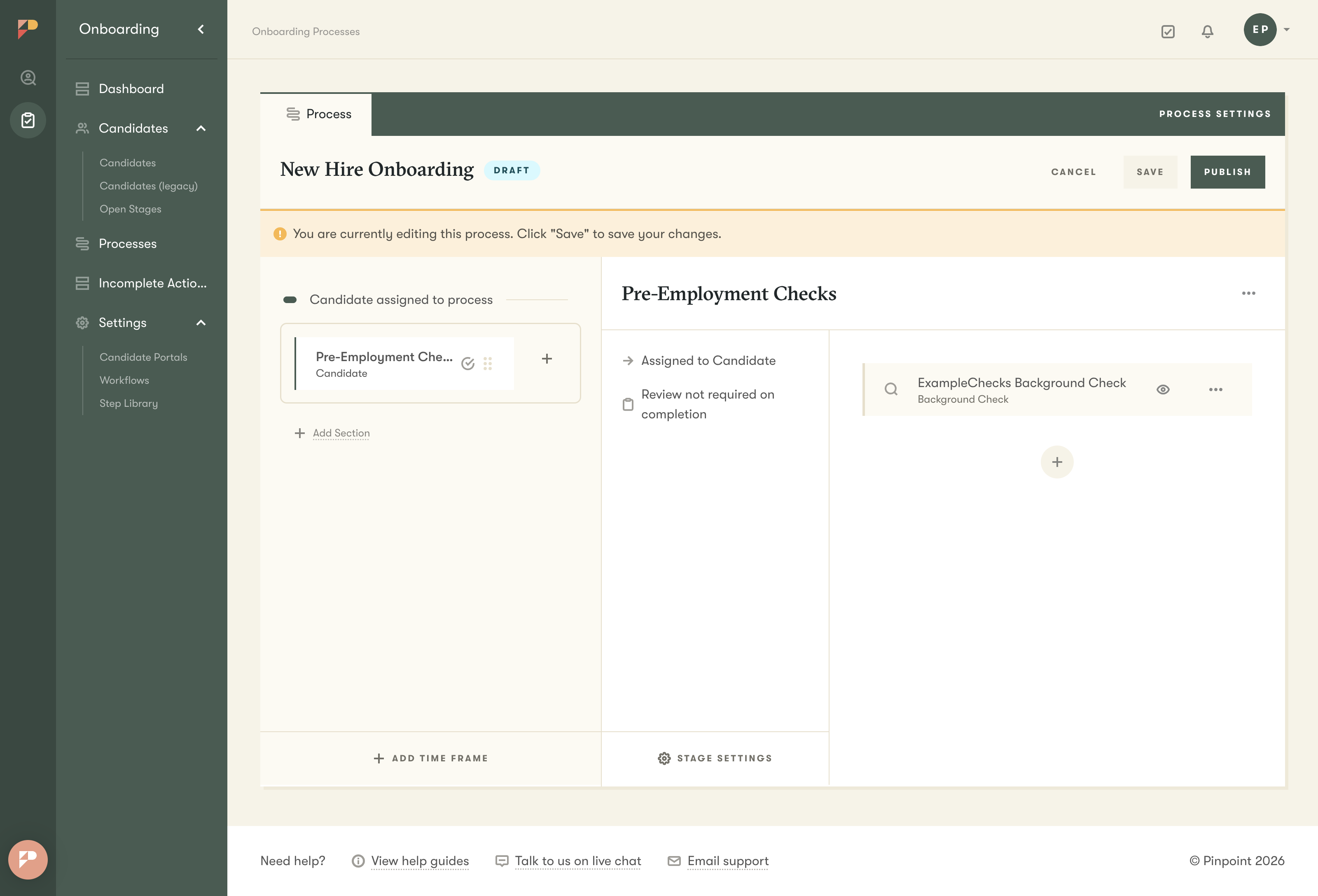
As an admin user, create or edit an onboarding process and add a background check step that uses the integration plugin provider.
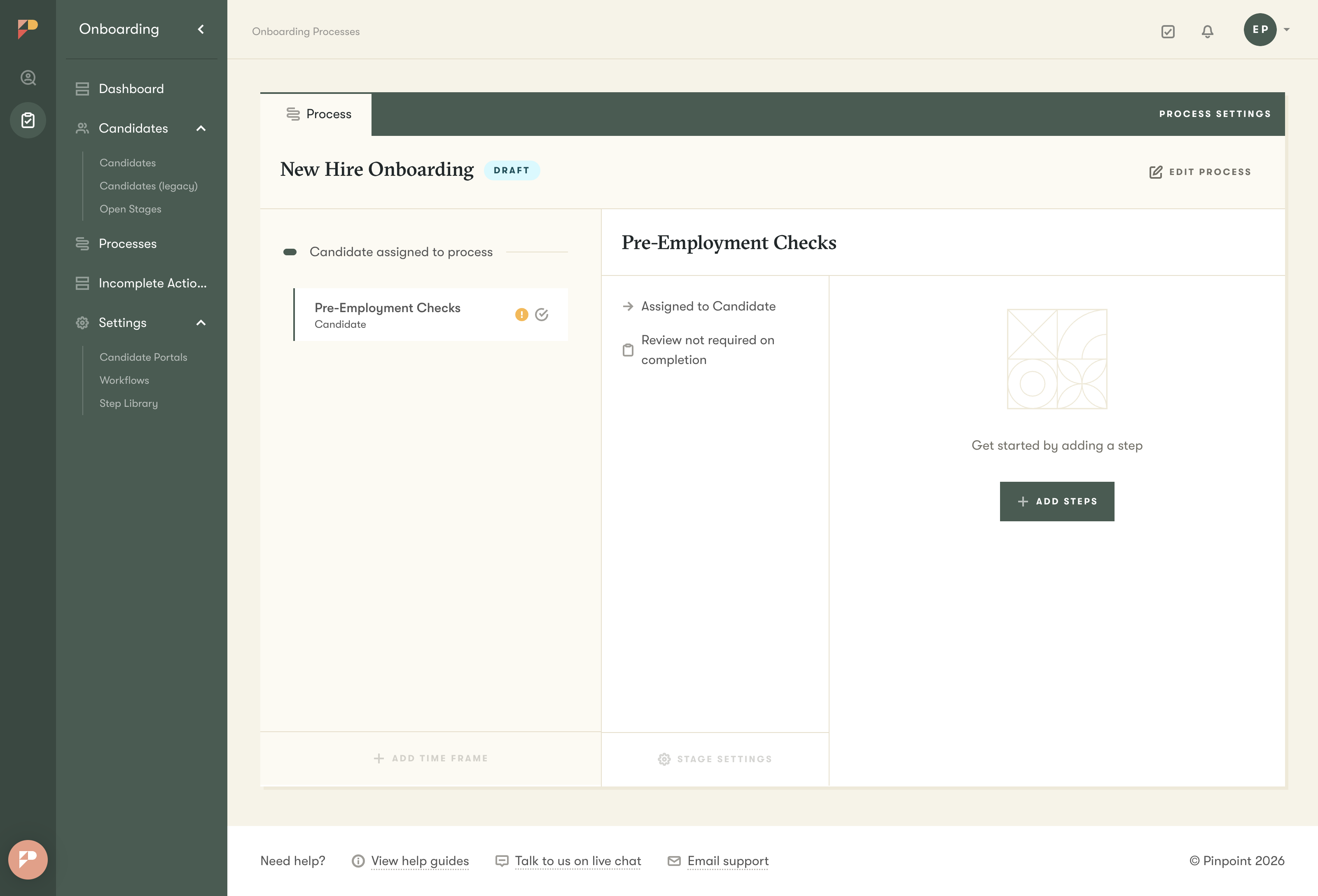
Click "Add Step" to open the step library, then "Create Step" to make a new step template (this can also be created from the Steps Library).
Select "Background Check" as the step type.
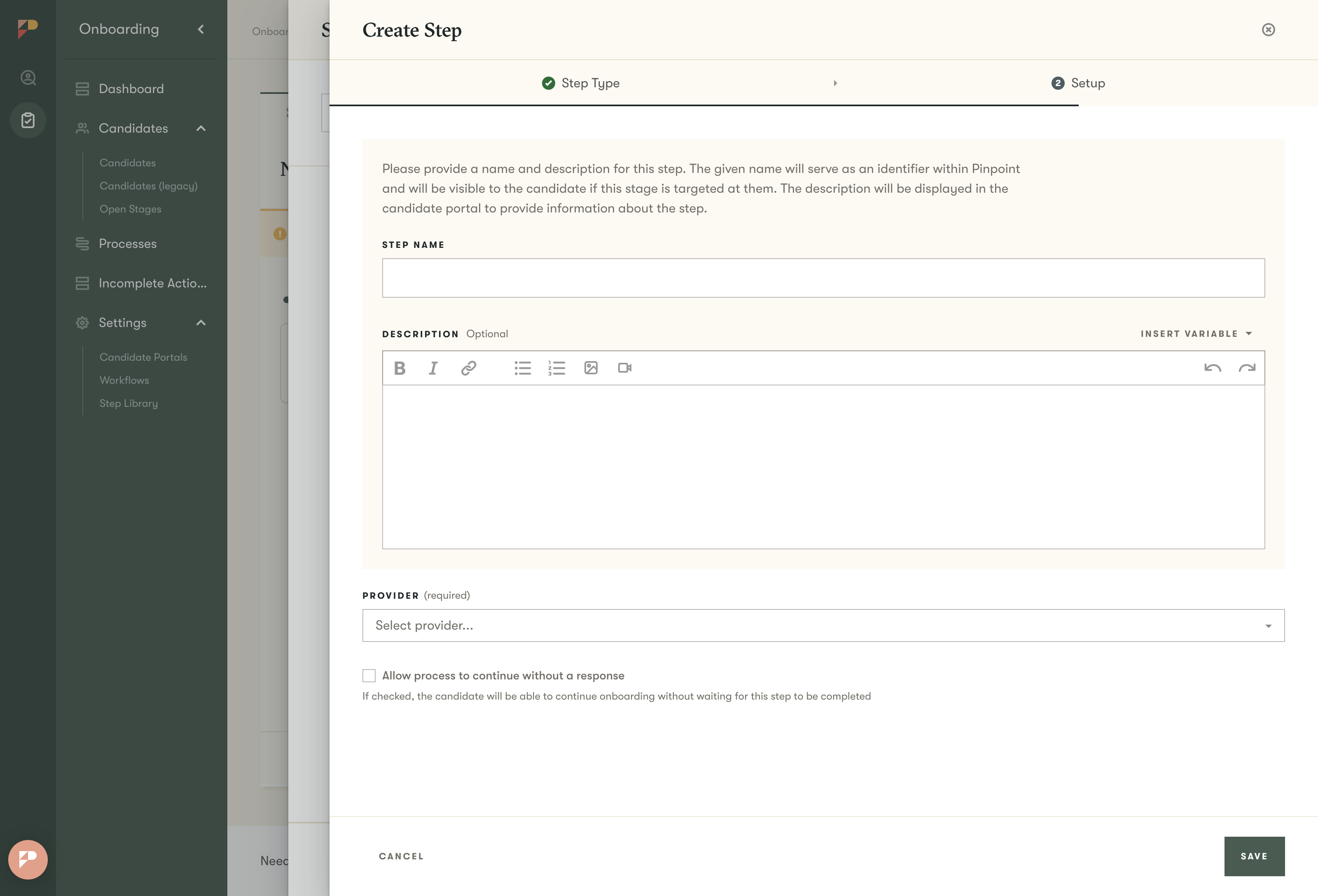
Fill in the step name and description.
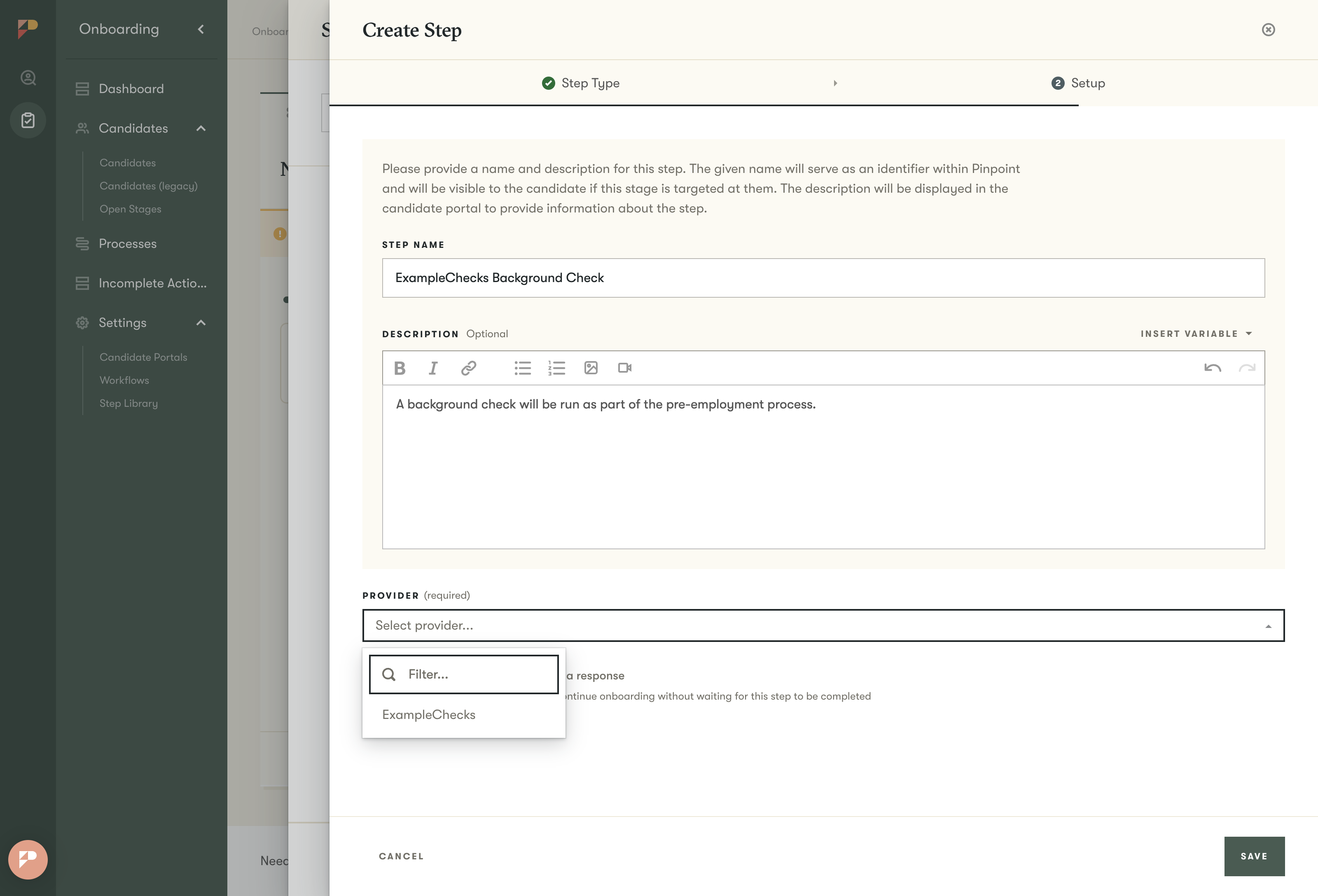
Select the provider from the dropdown. Integration plugin providers appear alongside any built-in providers (Certn, Checkr, etc.) in a single combined list.
Once a plugin provider is selected, additional configuration fields appear. The field mappings section shows which check-specific options are available -- these were enabled by the Pinpoint employee in the platform configuration step.
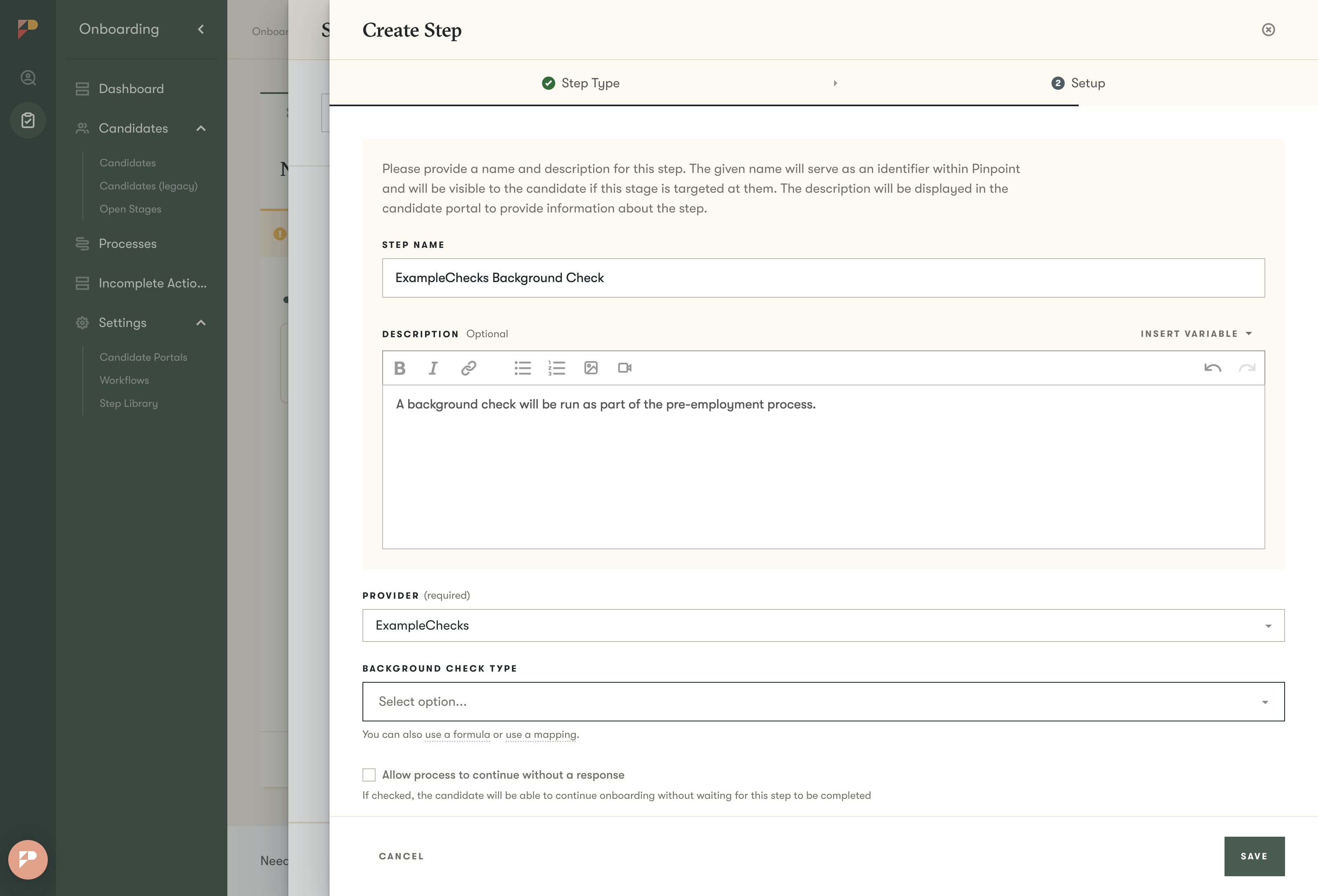
Save the step.
Add the newly created step template to the stage.
3. Viewing background check results for a candidate
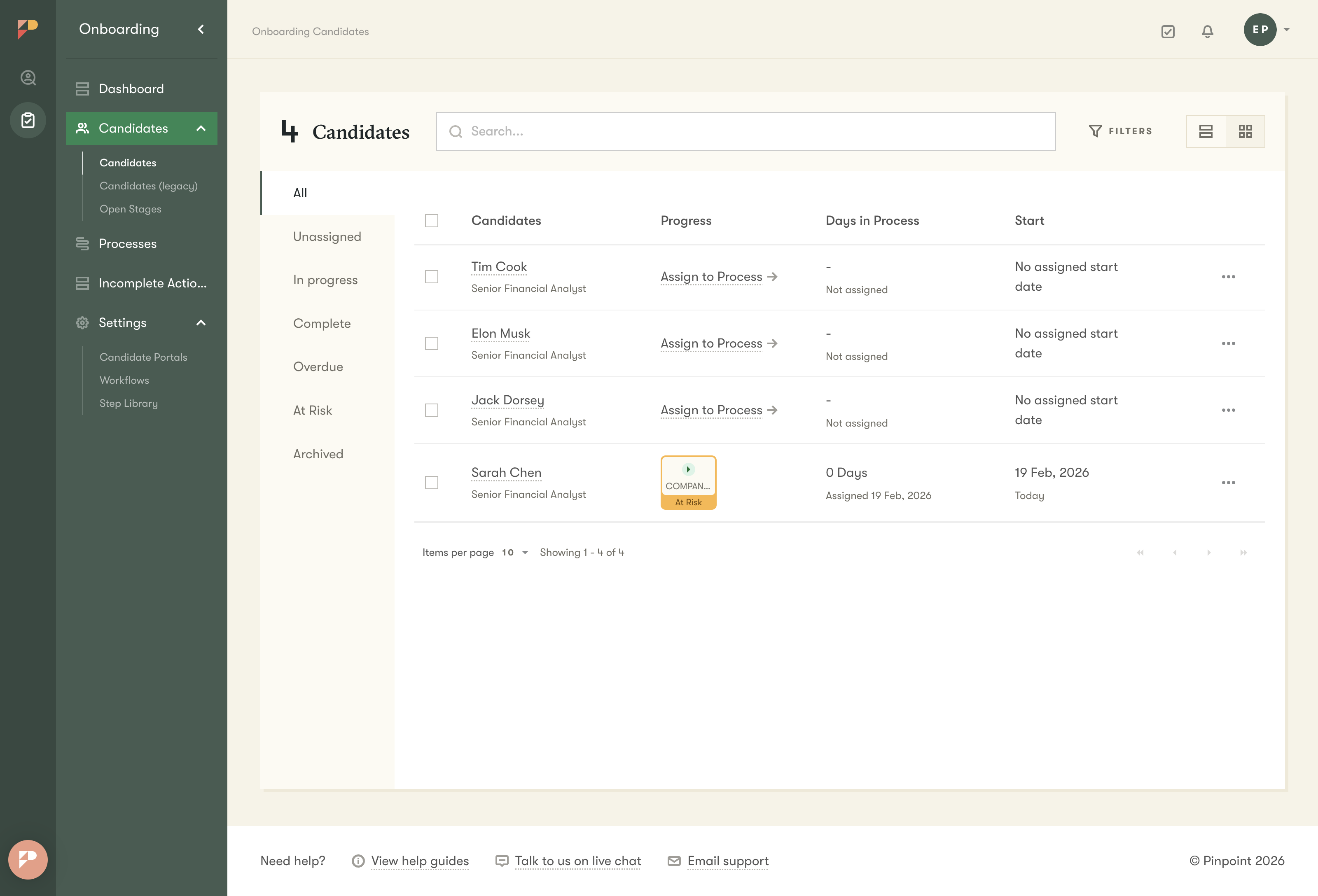
When a candidate enters an onboarding stage with a background check step, the system automatically triggers the check via the integration plugin. Open the candidate's onboarding profile to see the status.
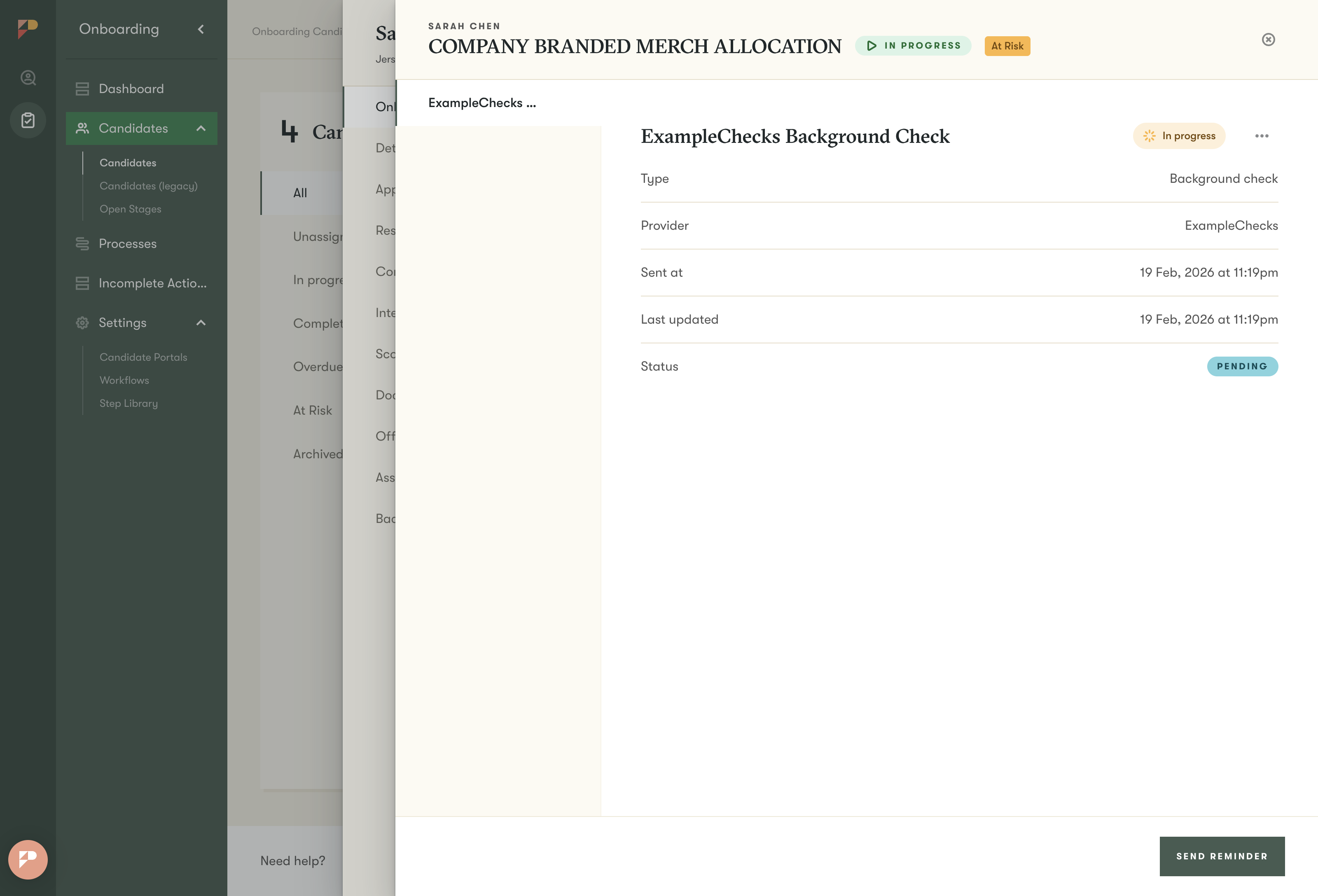
Click the background check step to open its detail drawer.
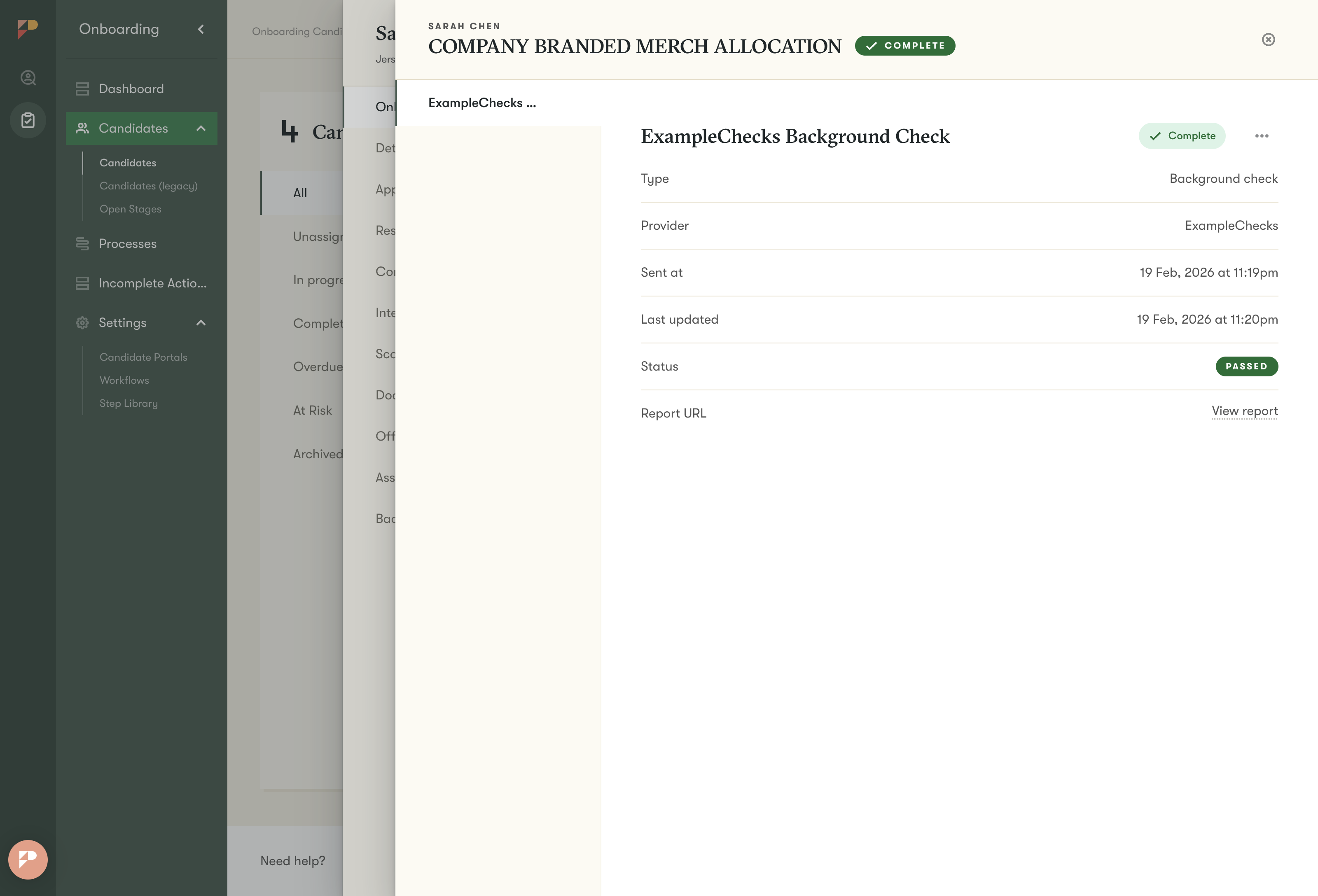
When the external provider completes the check, results are sent back to Pinpoint automatically via webhook. The status updates without any manual intervention.
Updated 7 months ago